How to Convert Your Document to PDF for Signwise Templates
If you're in the process of setting up a new SignWise template and are seeing the following message (below), you'll need to convert your document to a PDF format to proceed.

While converting a file to PDF varies slightly depending on the program you're using, it's typically a quick process. Below are a few common options and instructions for converting a file to PDF in each. If you can't find an option that works for you, we'd love to help you at support@seniorplace.com.
Adobe Acrobat Converter
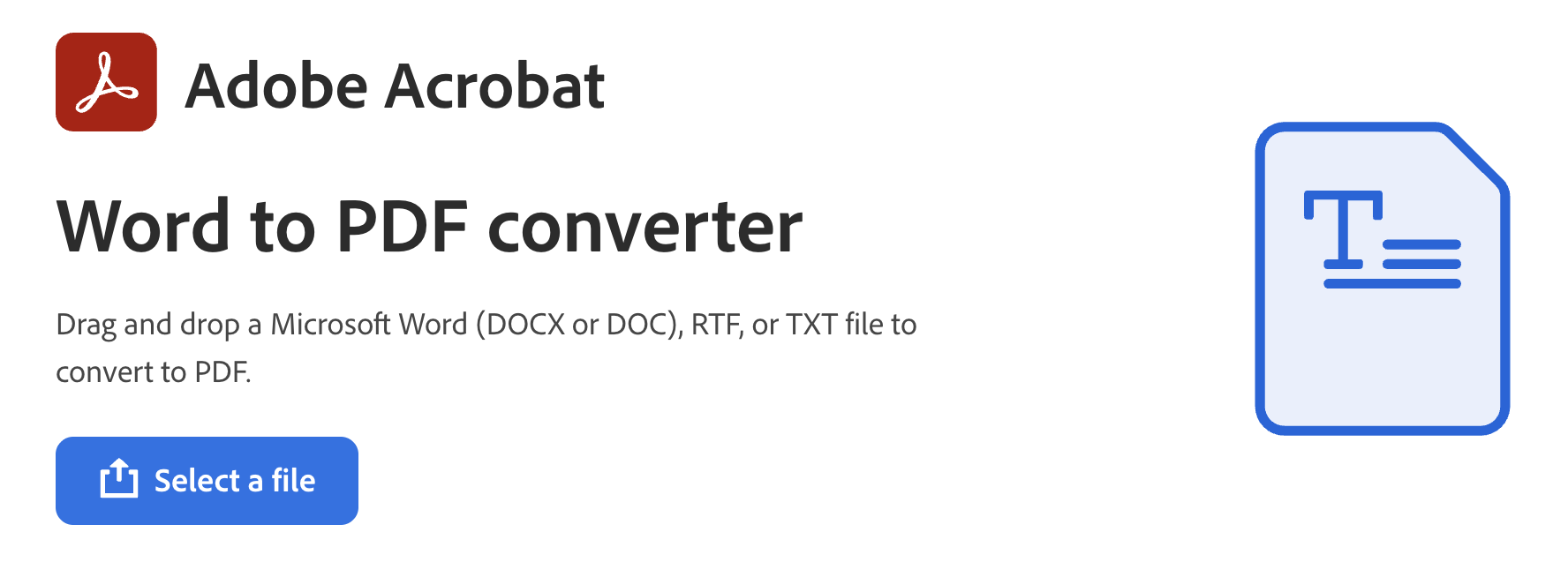
For a quick way to convert your DOCX, DOC, RTF, or TXT file to PDF, you can use Adobe's free PDF converter by clicking this link.
Google Docs
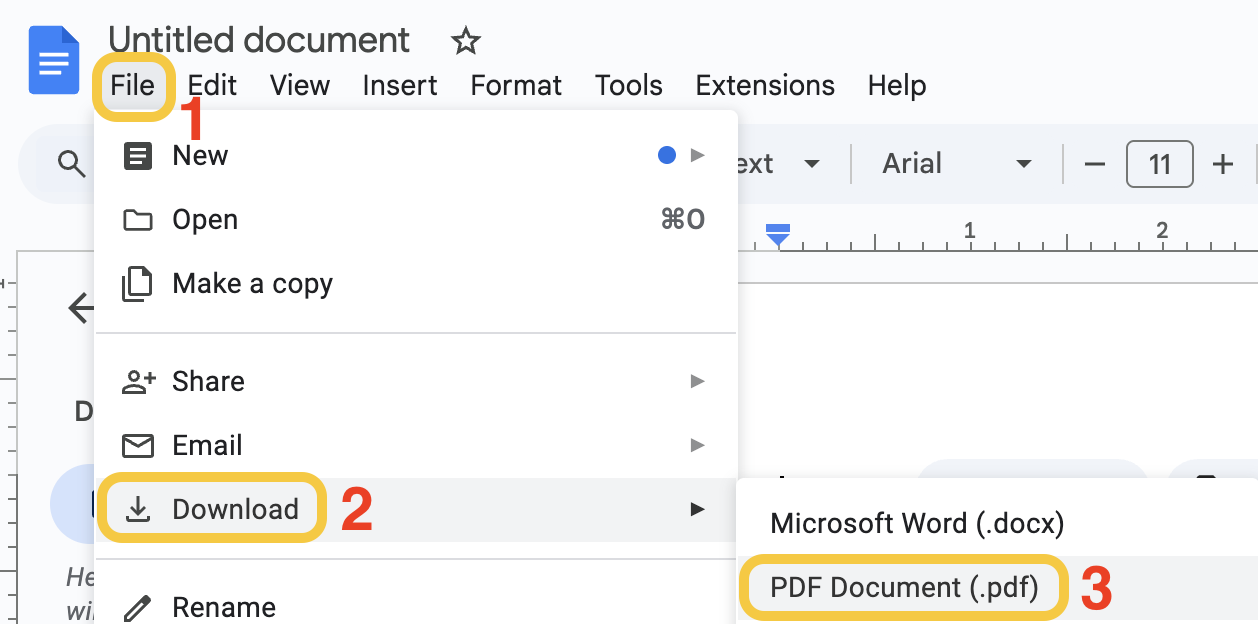
Downloading a Google Doc file as a PDF can be done in three steps:
- Click File
- Choose Download
- Select the PDF Document option
Microsoft Word
Go to Save As
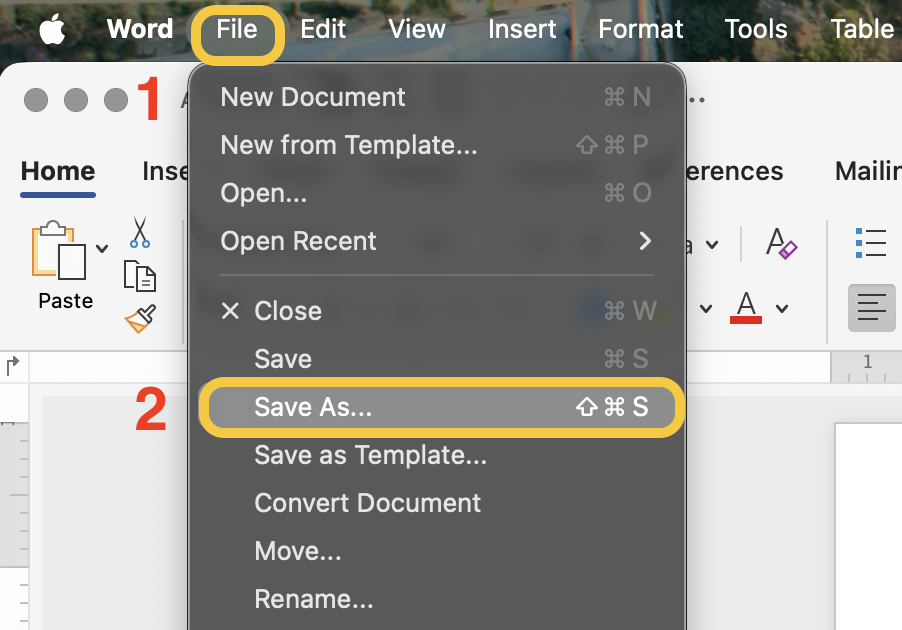
If you're using Microsoft Word, you can save a file as a PDF using the following steps:
- Click File
- Choose Save as
Export as PDF
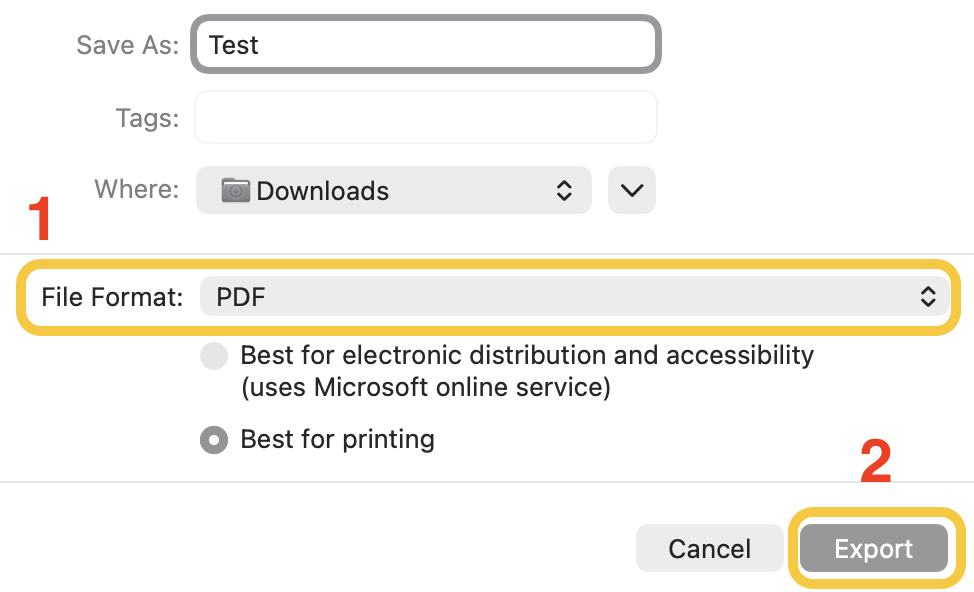
- Change the File Format to PDF
- Click Export
Have more questions? Feel free to reach out to us at support@seniorplace.com!