How to Create an Important Note
When you pin a note as Important, it shows in the header of the associated Client, Community, or Referral Source profile. This ensures the note is prominently displayed, making it easy for anyone to quickly view. Here's how to set one up:
1) Create and Pin Your Note
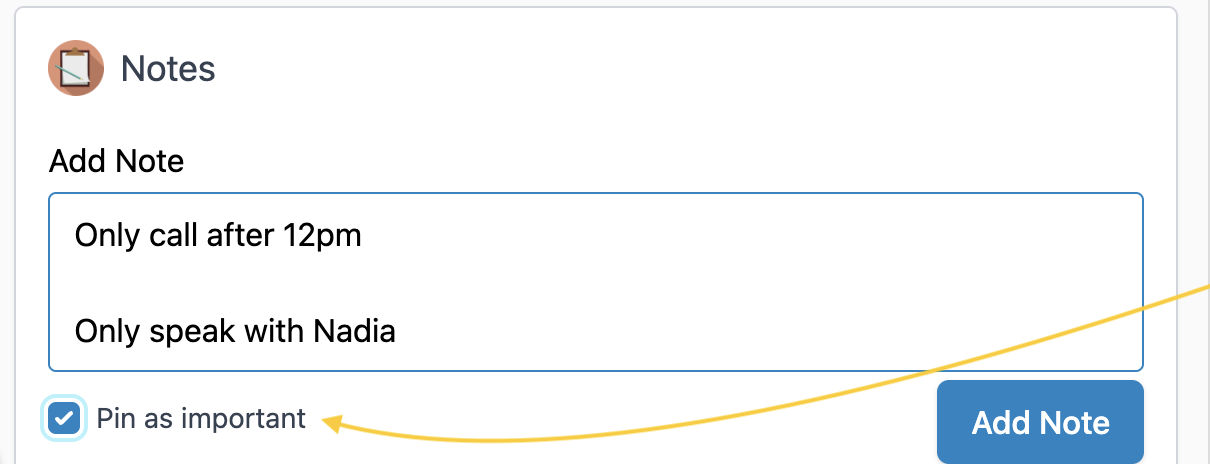
After entering your note in the profile or editing an existing note, you can mark it as important by selecting the Pin as Important checkbox.
Note: Only one note can be pinned per profile. To display a different note, update which note is pinned or edit the existing pinned note.
2) View Your Note
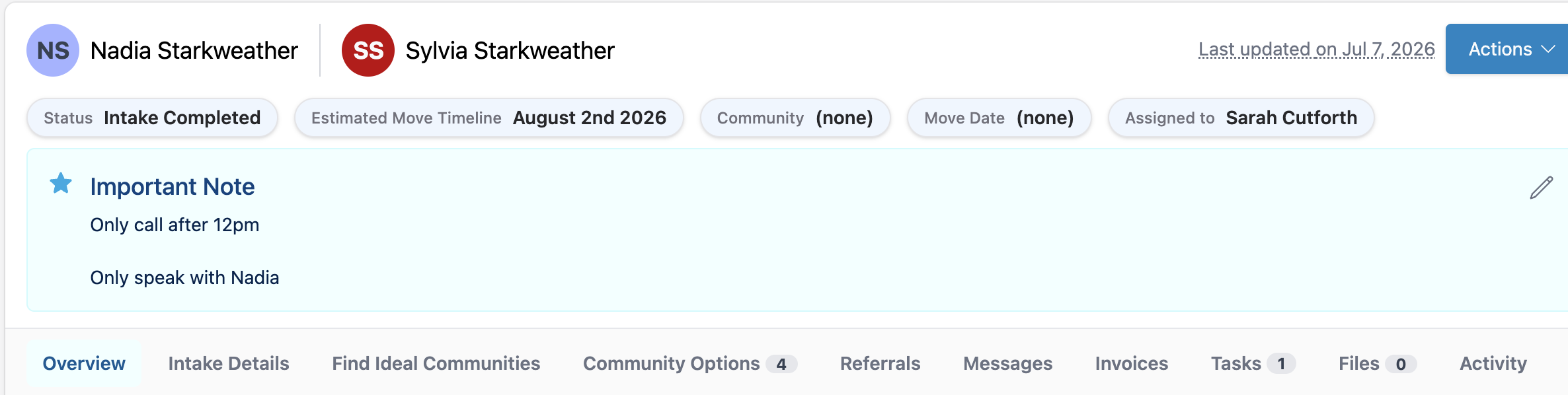
After pinning a note, it will be displayed as a banner at the top of the profile.
3) Editing Your Note
From Within The Notes Section
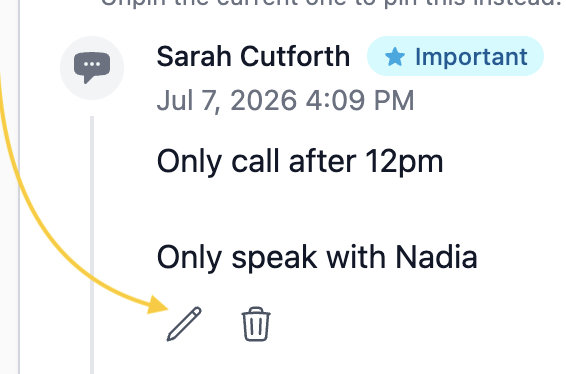
Edit your important note by clicking the pencil icon within the notes section.
From The Notes Banner
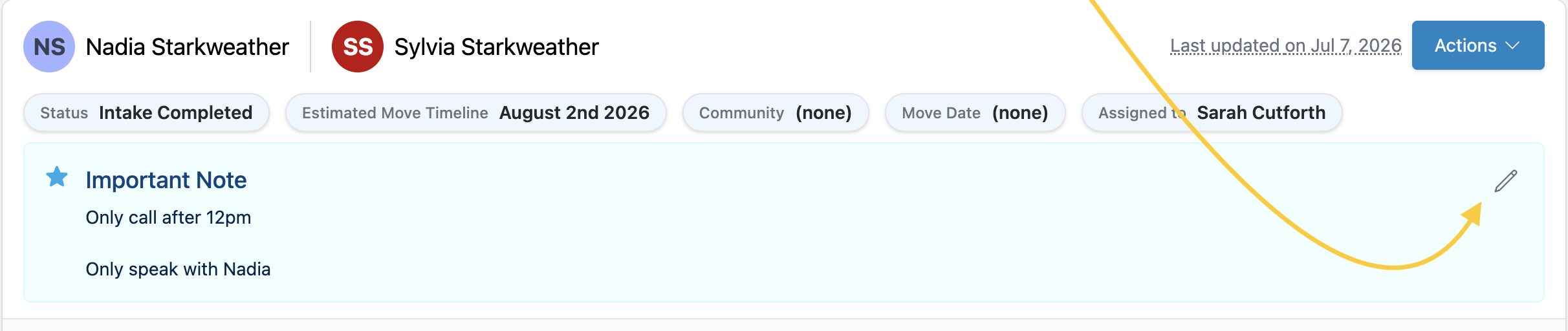
Edit your important note by clicking the pencil icon within the notes banner.
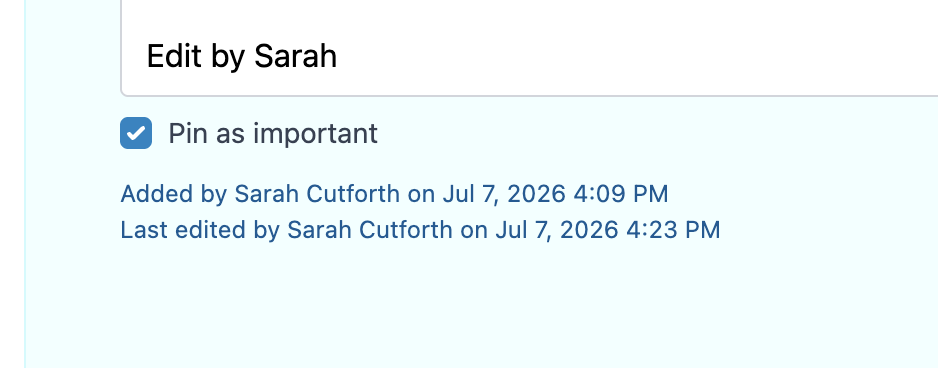
After clicking the pencil icon, you can also view the note’s history, including who added the note and any edits that have been made.
Have more questions? Feel free to reach out to us at support@seniorplace.com!